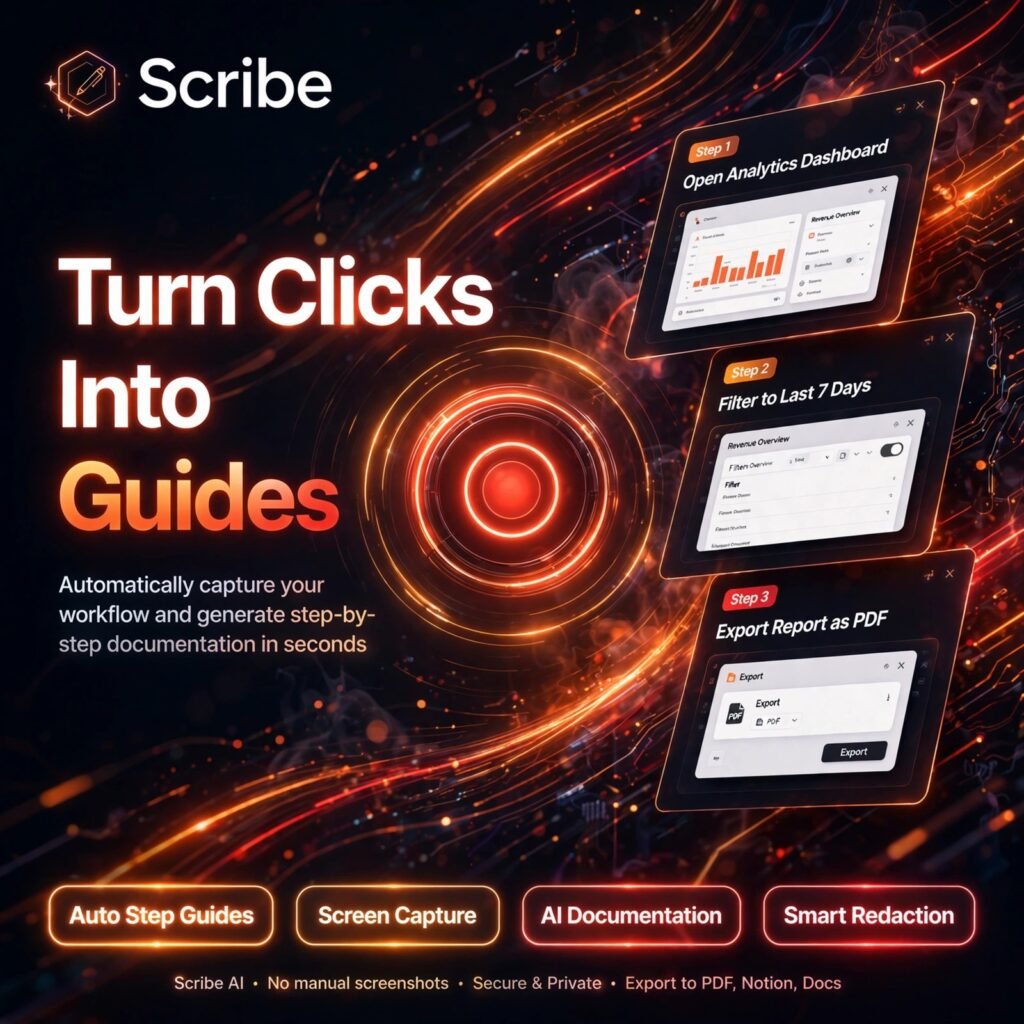
Documenting a process by hand means endless screenshots, copying, and formatting. Scribe removes that work entirely: you perform a task once, and it turns your clicks into a polished, step-by-step guide with screenshots and written instructions. For teams tired of repeating the same explanations, it is one of the simplest productivity tools to adopt.
Scribe, also known as ScribeHow, was founded in 2019 and is now used by millions of people for onboarding, training, support, and standard operating procedures. Instead of writing documentation after the fact, you capture it as you work — and share it in seconds.
Key Features of Scribe
Here are the features that make Scribe stand out for documentation:
- Automatic Step Guides: Click Record, do the task, and Scribe builds a numbered guide with a screenshot and description for every step.
- Browser and Desktop Capture: Record web workflows with the Chrome or Edge extension, and desktop or mobile workflows with the desktop app on paid plans.
- Scribe AI and Pages: Combine several guides into one complete document, and let AI help draft titles, descriptions, and supporting text around your steps.
- Smart Blur and Redaction: Blur sensitive information in screenshots manually, or use automatic redaction for personal data on higher plans.
- Easy Sharing and Embeds: Share any guide with a link, embed it in tools such as Notion or Confluence, or export it for your knowledge base.
- Custom Branding and Editing: Add your logo and colours, edit screenshots, annotate steps, and reorder or rewrite anything before publishing.
- Exports: On paid plans, export guides as PDF, HTML, or Markdown for use in wikis, help centres, and documentation hubs.
Scribe Pricing Plans
Scribe is freemium, so you can start for free and upgrade when you need desktop capture, branding, or exports:
- Basic – $0: Free forever. Web-based capture only, a limited number of guides, basic editing, and sharing by link or embed.
- Pro Personal – from around $25/user/month billed annually: Unlimited guides, web, desktop and mobile capture, screenshot editing and redaction, custom branding, and PDF, HTML and Markdown exports.
- Pro Team – per-seat pricing, minimum 5 seats: Everything in Pro Personal, plus team collaboration, comments, and shared workspaces for departments.
- Enterprise – Custom: Single sign-on, automatic redaction for sensitive data, advanced security and data governance, and centralised admin controls.
Prices change over time, so check the official pricing page before buying. For most individuals, the free plan is enough to test the workflow, while Pro pays off as soon as you document desktop apps or need exports.
How to Use Scribe
Creating your first guide takes only a few minutes:
- Create a free account: Sign up at scribehow.com and install the browser extension or desktop app.
- Start a capture: Click Record, choose the window or tab you want to document, and then carry out the task exactly as you normally would.
- Stop and review: Finish the capture and Scribe instantly generates the step-by-step guide with screenshots and text.
- Edit and polish: Rename steps, delete unnecessary clicks, blur anything sensitive, and add tips or warnings where readers need them.
- Share or export: Send the link, embed the guide in your team workspace, or export it on a paid plan. When the process changes, simply re-record it.
Pro tip: Record in a clean browser window with notifications off, and do the task slowly and deliberately — cleaner captures need far less editing afterwards.
Pros and Cons of Scribe
Pros:
- Turns hours of manual documentation into a few minutes of recording
- Very easy to learn — no design or writing skills required
- Generous free plan for web workflows
- Guides look professional and are easy to share or embed anywhere
- Strong redaction and security options for teams on paid plans
Cons:
- Free plan is limited to browser capture and a small number of guides
- Desktop capture, branding, and exports require a paid plan
- Generated steps sometimes include extra clicks that need trimming
- Guides must be re-recorded when an app interface changes significantly
Frequently Asked Questions
Common questions about Scribe, answered:
Is Scribe free to use?
Yes. The Basic plan is free and covers browser-based capture with sharing by link or embed. Paid plans add desktop and mobile capture, unlimited guides, branding, redaction, and exports.
How does Scribe create a guide automatically?
While you record, Scribe tracks your clicks and key actions, takes a screenshot at each step, and writes a short description for it. When you stop, those steps are assembled into a finished step-by-step guide you can edit and share.
Can Scribe record desktop applications?
Yes, with its desktop app on a paid plan. The free Basic plan only records workflows inside your web browser using the extension.
Is Scribe safe for sensitive information?
Scribe offers screenshot blurring and, on higher plans, automatic redaction for personal data, plus enterprise security controls such as single sign-on. You should still review every guide before sharing it.