Editing video should not need a powerful desktop or weeks of training. VEED is a browser-based AI video editor that lets creators, marketers and teams record, edit, subtitle and publish polished videos entirely online — with AI tools that remove filler words, clean audio, generate avatars and dub your voice into other languages.
What is VEED?
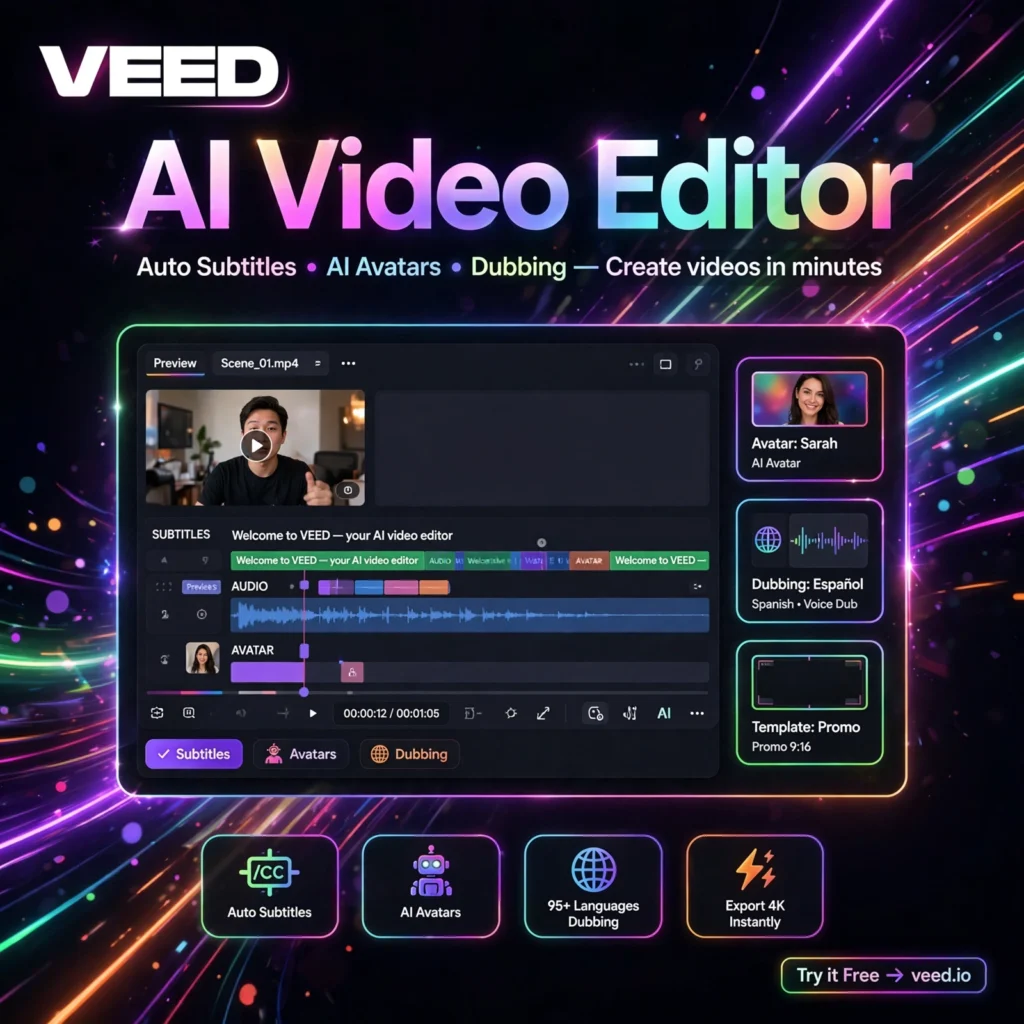
VEED is an online video editing platform built for speed. Everything runs in your browser: you upload or record footage, trim it on a simple timeline, add auto-generated subtitles and export in the format your channel needs. There is nothing to install and no rendering queue on your own machine.
What sets VEED apart is its built-in AI: text-to-video generation, AI avatars, voice cloning, eye-contact correction and one-click audio cleanup alongside its well-known auto subtitles. If you already use InVideo for template-based videos or Descript for text-based editing, VEED sits comfortably between them — a full editor that stays beginner-friendly.
Key Features of VEED
Here are the features that make VEED stand out:
- Auto Subtitles: Generate accurate subtitles in seconds, style them for social media, download them as files, or translate them for a wider audience.
- AI Avatars and Text-to-Video: Turn a script or prompt into a presented video using AI avatars and generated clips, without a camera or studio.
- Clean Audio and Filler Removal: Remove background noise, silence and filler words such as “um” and “uh” with one click, so talking-head videos sound professional.
- Eye Contact Correction and Background Removal: AI adjusts your gaze towards the camera and removes or replaces backgrounds without a green screen.
- AI Dubbing and Translation: Translate and dub videos into 50+ languages on Pro plans, keeping a natural, voice-matched result.
- Screen Recording and Stock Library: Record your screen and camera together, then fill gaps from a large library of stock video, music and sound effects.
- Brand Kit and Collaboration: Save logos, fonts and colours for consistent output, and share projects with teammates for comments and review.
How to Use VEED
Getting started takes only a few minutes:
- Create a free account: Go to veed.io and sign up — no software to install, everything runs in your browser.
- Upload or record: Import footage from your device, record your screen and camera, or start from a template or an AI-generated clip.
- Edit on the timeline: Trim, split and rearrange clips, then add text, images, music and transitions by dragging them into place.
- Add subtitles and AI touches: Generate auto subtitles, clean the audio, remove filler words and apply background or eye-contact fixes where needed.
- Export and share: Choose your resolution and aspect ratio for YouTube, TikTok or LinkedIn, export, and share a link or publish directly.
Pro tip: Most social viewers watch on mute, so well-styled captions matter more than fancy transitions. For long recordings into short clips, also compare Pictory before you commit.
VEED Pricing Plans
VEED has a free tier and paid plans billed per user, with annual billing costing less per month:
- Free – $0: Basic browser editor, limited auto subtitles and 720p exports up to 10 minutes, with a VEED watermark on exported videos.
- Lite – $19/month, or about $12/month billed annually: No watermark, 1080p exports, much higher subtitle allowances, premium templates and stock media.
- Pro – $49/month, or about $24/month billed annually: Full AI suite including avatars, text-to-video, dubbing and translation into 50+ languages, 4K exports, full brand kit and a yearly AI credit allowance.
- Enterprise – Custom: SSO, custom avatars and templates, centralised team management, privacy controls and dedicated support.
The free plan is good for testing the editor. If you publish for clients or a monetised channel, Lite removes the watermark, while Pro is the tier for regular avatar, dubbing and text-to-video work.
Pros and Cons of VEED
Pros:
- Fast, beginner-friendly editor that runs entirely in the browser
- Excellent auto subtitles with styling, download and translation options
- Useful AI tools in one place: clean audio, filler removal, avatars and dubbing
- Good templates and resizing for short-form social video
- Brand kit and collaboration suit small marketing teams
Cons:
- Free exports carry a watermark and are capped at 720p and 10 minutes
- AI credits on paid plans make heavy avatar or dubbing use harder to budget
- Fully cloud-based — no offline editing and large uploads need a stable connection
- Timeline control is less deep than desktop editors such as Premiere Pro
Frequently Asked Questions
Is VEED free to use?
Yes. VEED has a free plan with the basic editor, limited auto subtitles and 720p exports up to 10 minutes. Exports carry a VEED watermark, so most creators move to Lite or Pro for published work.
What is VEED best for?
VEED is best for creators, marketers, educators and small teams who need subtitled, polished short-form and social videos quickly. Its auto subtitles, clean audio, AI avatars and dubbing make talking-head and marketing videos especially fast to produce.
Can VEED translate and dub my videos?
Yes, on Pro plans. VEED can translate subtitles and dub videos into 50+ languages with voice-matched audio. Dubbing and avatar work use your plan’s AI credits, so check the allowance if you plan heavy use.
Does VEED work offline?
No. VEED is entirely browser-based and cloud-rendered, so you need a stable internet connection to edit and export. In return, there is nothing to install and projects are available from any computer.